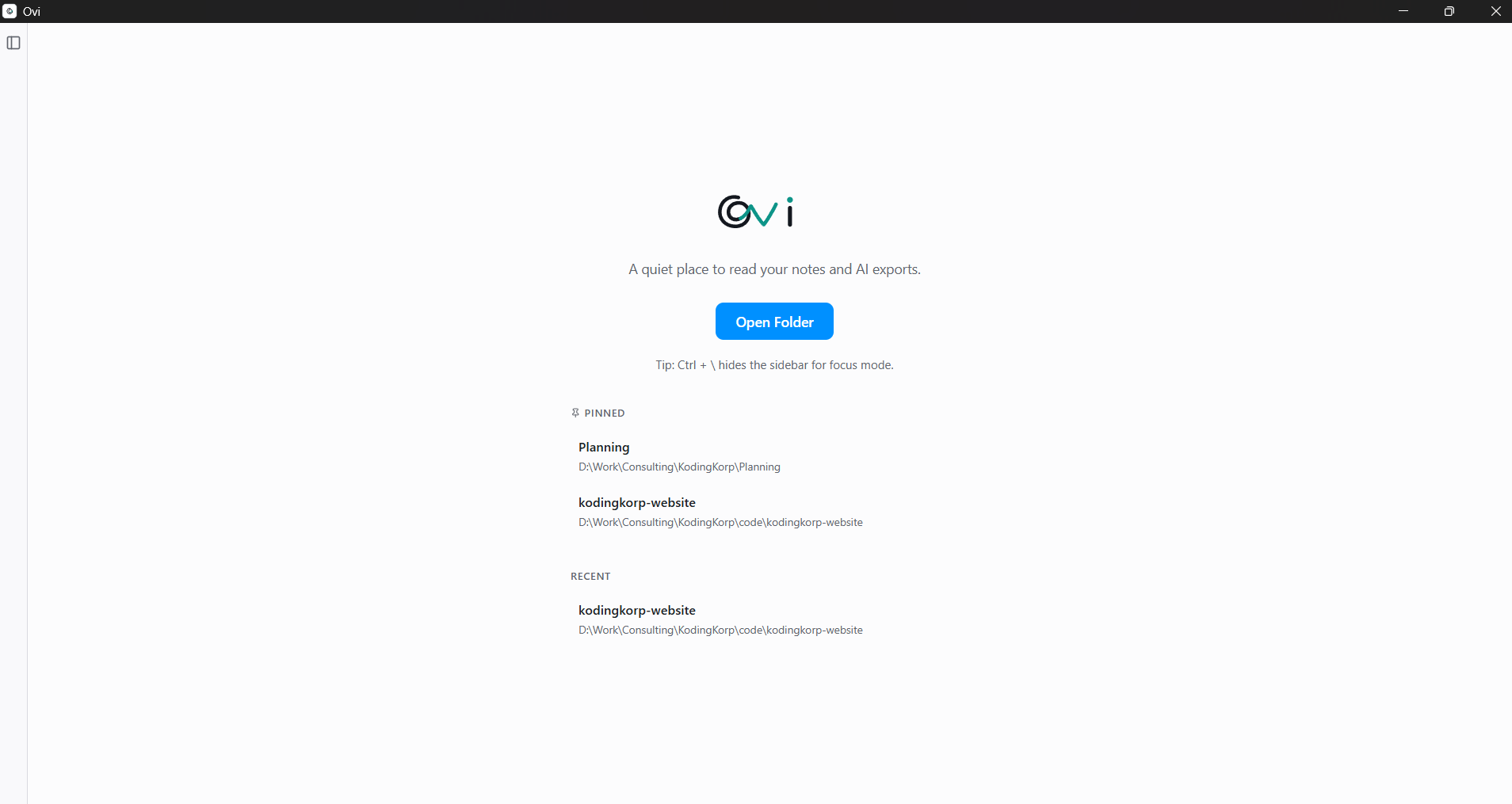
Find your way back
Pin the folders you live in. Your recent ones stay in front of you. One click and you're reading again.

The plans, drafts, reports, and specs your AI tools keep producing — opened cleanly, read in tabs, kept ready through Recents and Pins. No accounts. No cloud. Just reading.
Local-only · Read-only · No account required
Why Ovi
Codex. Claude. ChatGPT. They produce long, useful, business-grade plans and reports. Then your laptop puts them in front of you as raw .md files — best read inside developer tools you don't use.
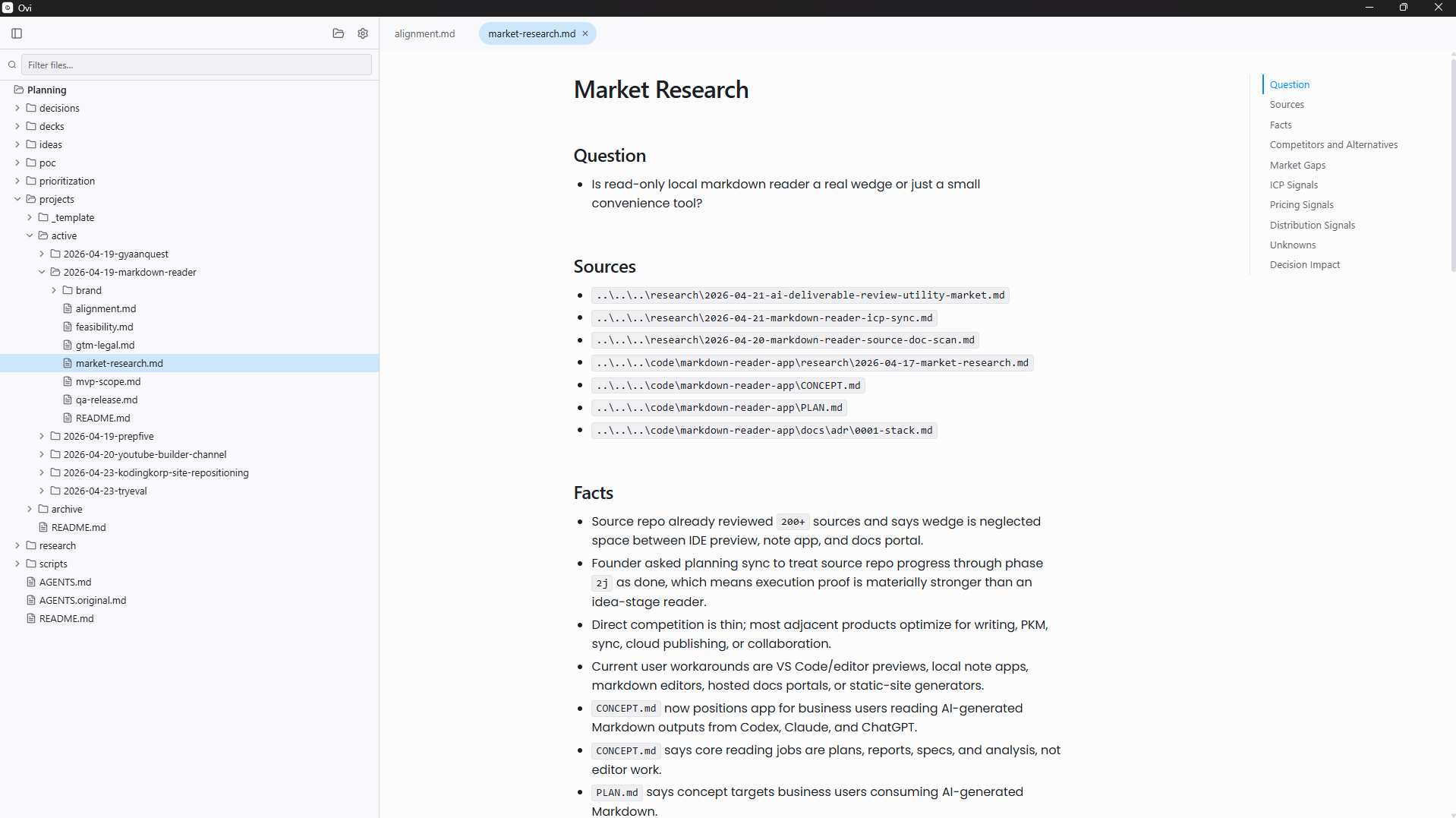
Ovi is a reader, not an editor. It opens a folder, lays it out cleanly in tabs, remembers where you left off. The same documents, suddenly readable.
What you get
Ovi is built around the way you actually use long documents — read, set down, come back to. Not the way an editor wants you to use them.
Pin the folders you live in. Your recent ones stay in front of you. One click and you're reading again.
Open three documents at once, jump between them, come back tomorrow. Each one is exactly where you left it.
Ovi never edits, renames, moves, or deletes a file. Open it on your client's folder without flinching.
Markdown lives next to PDFs, sheets, and images. Nothing hidden. Click any file to open it in your usual app.
Charts, equations, code, and tables render beautifully — without you setting anything up. Just open and read.
Ovi greets you with a Welcome screen. No stale tabs from last week's project. You decide what to open.
Working from a terminal? ovi . opens the current folder. More in the FAQ.
A week with Ovi
Your client's strategy folder. The product spec you keep coming back to. Pin them once and they stay in front of you.
Tell Claude or ChatGPT to drop its output in a folder. Open Ovi. The plan reads like a document, not a debug log.
Last week's report is one click away in Recents. Open this week's draft in a tab next to it. Find what changed.
Get Ovi
Download for Windows or Mac, or install on Omarchy with one terminal command. Personal and commercial use, no charge.
x86_64
Checking latest release…
Install on Omarchy
Ovi checks for updates automatically. You choose when to install.
Loading latest version…
Free to use · Local-only · Read-only
Questions
Document contents stay on your machine — Ovi reads only the folder you open and never sends file names, paths, or contents anywhere. There are no accounts and no cloud sync. Ovi does send a small set of anonymous usage events (app opened, file rendered, return after 24 hours, update applied) to help measure adoption; you can switch this off in Settings → Privacy & telemetry, and the privacy policy lists every event in §9.
Markdown (.md) files — the format every modern AI tool exports to. Tables, diagrams, equations, code, and links inside those documents all render cleanly. Other file types stay visible in the folder tree and open in your default app on click.
macOS for Apple Silicon ships today. Omarchy x86_64 installs with one terminal command and supports signed in-app updates. Other Linux distributions and architectures are not supported yet.
Apple shows that warning for any Mac app not signed with an Apple Developer ID. Developer signing is in progress on our side; until it lands, you can let Ovi run with a one-time bypass: open System Settings → Privacy & Security, scroll down to where it says Ovi was blocked, and click “Open Anyway.” After that, Ovi opens normally on every subsequent launch, and future updates apply silently in the background — the warning only happens on the very first install.
Windows SmartScreen warns about new publishers until they build reputation. On first launch, click "More info" then "Run anyway" — Ovi installs normally. We're working toward a signed build to remove this friction.
On Windows, Mac, and Omarchy, Ovi checks for new versions in the background, roughly every four hours while running. When an update is available, it offers a one-click install.
Yes. The Windows installer adds ovi to your PATH. On Omarchy, installation adds it under ~/.local/bin and prints the full command path if that directory is not on your PATH. From any folder, type ovi . to open it, or ovi <path> to open a specific folder. Drop it into your AI workflow scripts and you're set.
Windows 10 or 11 (x64), macOS 12 or later (Apple Silicon), or Omarchy (x86_64). Other Linux distributions and architectures are not currently supported.
We use cookies for product analytics so we can see which steps of the funnel work. Decline keeps tracking anonymous and cookie-free. See our Cookie Policy.